Virtual Machine

Full-stack Software Developer and Javascript Enthusiast, Who Loves Building Things In Javascript. 🔥 👨🏽💻🏅
History
In the early days of computing, a single server typically ran just one application, such as a website, database, or email server. This approach often led to underutilized resources (CPU, memory, storage) because traditional operating systems weren't optimized for efficiently managing multiple applications simultaneously. Virtual machines (VMs) emerged as a groundbreaking solution to address this challenge.
What is VMs ?
A Virtual Machine (VM) is a compute resource that uses software instead of a physical computer to run programs and deploy apps. In a virtual machine, it can virtualize RAM, Disk Storage, and Network as well.
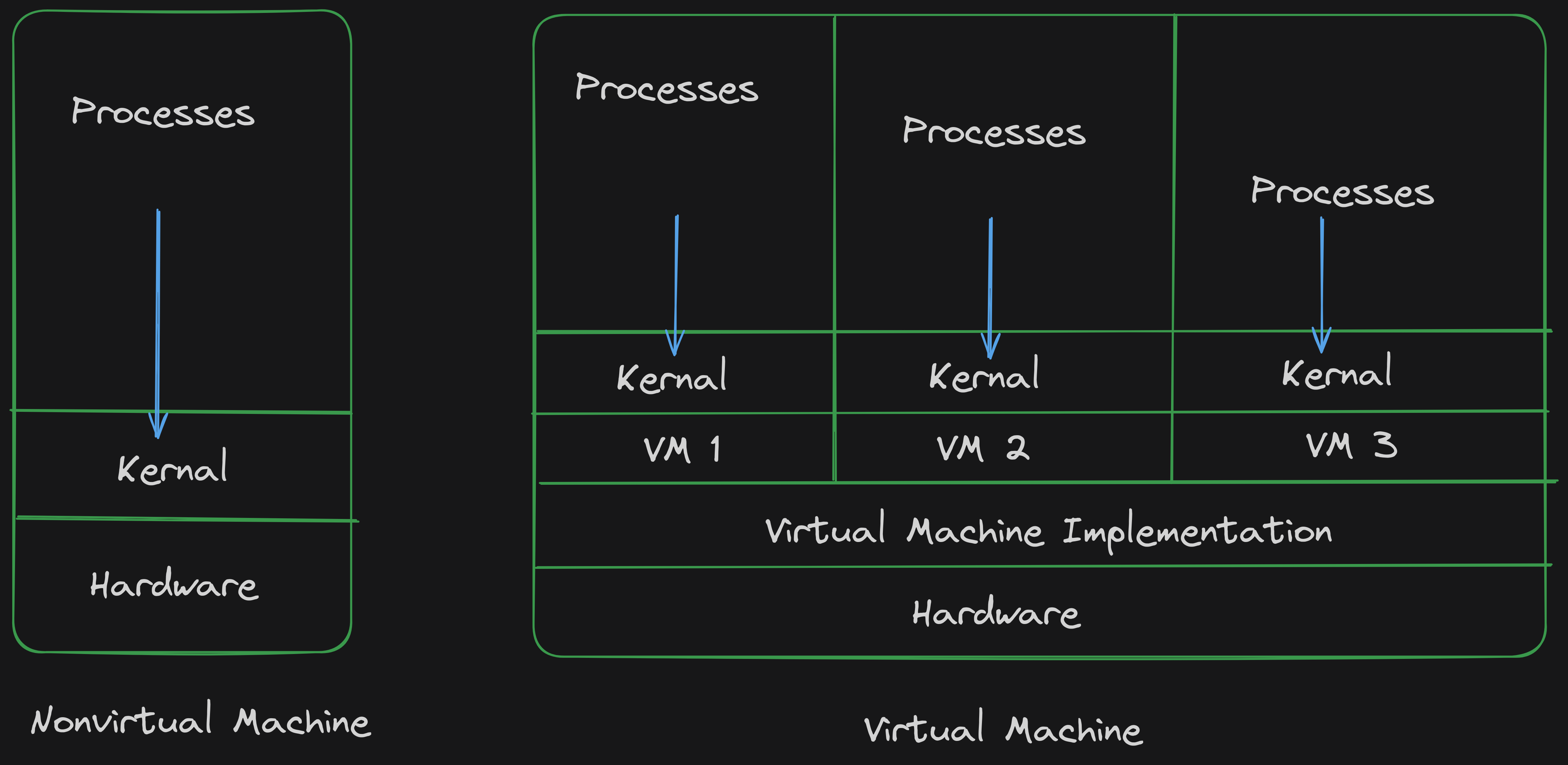
A physical computer consists of physical hardware components like CPU, memory, storage, and peripherals. An operating system (OS) like Windows, macOS, or Linux runs on top of the hardware. The OS acts as a layer between the hardware and the user. It manages the hardware resources (CPU, memory, storage) and allocates them to running applications (processes).
A virtual machine (VM) is a software program that creates a simulated computer system. It provides an isolated environment where you can install an operating system and applications just like on a physical machine.
Architecture
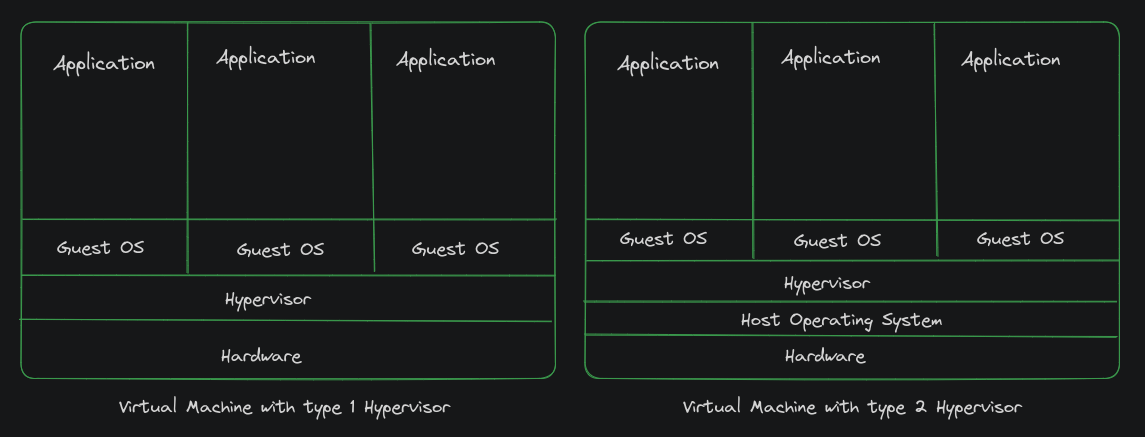
Two types of virtual machines can be created using two types of hypervisors: Type-1 (Bare-Metal Hypervisor) and Type-2 (Hosted Hypervisor). But first, let's have a look at what a hypervisor is.
A hypervisor or Virtual Machine Monitor (VMM) is a piece of software used to manage and allocate resources (CPU, memory, storage) to its guest operating system so that they can run their applications.
In Type-1 hypervisor, it is directly implemented on top of physical hardware, and there is no host OS in this case, whereas in Type-2 hypervisor, it is implemented on a host OS.
Installation
Here's a clear guide on how you can run a virtual machine on your system. I am using Type-2 hypervisor because I don't want to destroy my current system. I am using Ubuntu 22.04 as the host operating system and VirtualBox as the hypervisor.
Step-1
First things first, update your package manager.
sudo apt update
sudo apt upgrade
Step-2
Now let's install VirtualBox.
sudo apt install virtualbox
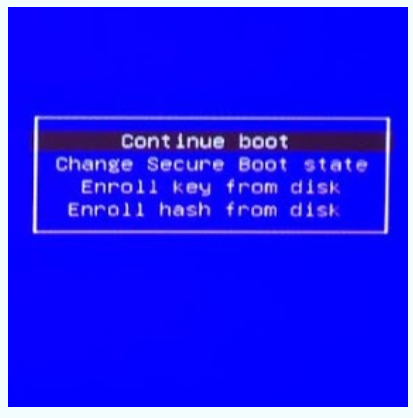
If during installation you encounter the error "Failed to start LSB: VirtualBox Linux Kernel module"

then turn off your secure boot. Reboot your PC, and when your system starts, select Change Secure Boot state and disable it
After installation of VirtualBox, install the VirtualBox Extension Pack for more features.
sudo apt install virtualbox-ext-pack
Step-3
Install vagrant but first lets see what is vagrant and why we are installing it
Vagrant is a command-line tool for building and managing virtual machine environments. It simplifies the process of creating, configuring, and provisioning virtual machines by using a declarative configuration file called a Vagrantfile.
sudo apt install vagrant
Now Now let's install an OS for our virtual machine. Here's a base box provided by Vagrant, which is ubuntu/focal-fossa.
vagrant box add ubuntu/focal64
Step-4
Let's initialize our virtual machine by creating a directory.
mkdir Vmachines
cd Vmachines
vagrant init ubuntu/focal64
vagrant up
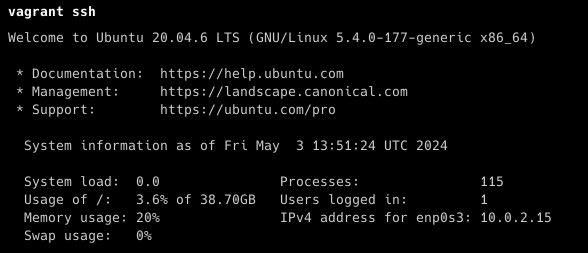
vagrant ssh
After hitting vagrant status, you can see this prompt. Press "exit" to exit from the virtual machine.
ssh-keygen -t rsa -b 4096 -C "hellomerakishubh@gmail.com"
Step-5
Configure SSH keys to interact with your virtual machine from your host machine by generating public and private keys. After this, you'll have a public key in your .ssh/id_rsa.pub. Copy that key, switch to the virtual machine by entering:
vagrant ssh
Then create a directory named .ssh and a file named authorized_key. Paste your public key. Now you no longer need a password to switch from your local machine to your virtual machine.
Application
- Since I am a web developer, I am discussing benefits in that field. I am using a virtual machine so that i can deploy my application on my VM and can easily access it remotely. If you want a detailed deployment process, feel free to leave a comment below.